NETWORK CONNECT INSTALL
The Network Connect client is Juniper's FULL VPN Client installation.
Connect to the new VPN site, please open the link: http://sslvpn.cnoinc.com/
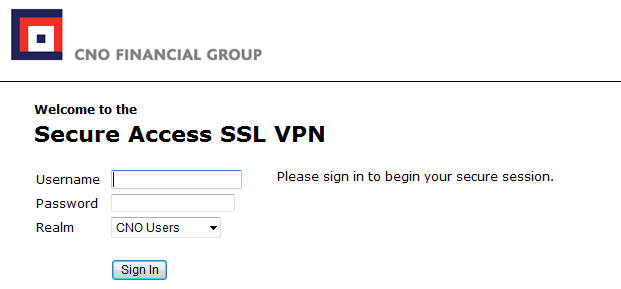
At the screen depicted below, type your username, password, and select the appropriate realm. Select Sign In.
REALMS:
CNO / BANKERS / PMA USERS = CNO Users
COLONIAL PENN USERS = ColPenn Users
Scroll to the bottom of the web page. Locate Network Connect in Client Application Sessions. Select the Start button to begin the installation.

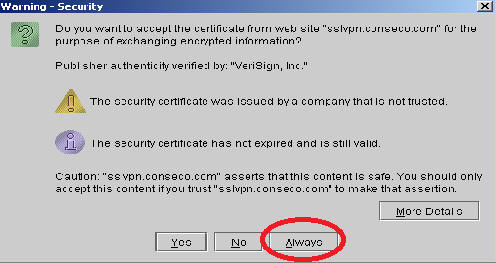
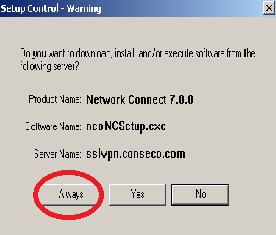
You will then be prompted with multiple windows like these below - please select "YES", "ALWAYS", or "ALLOW ALWAYS" in these windows.
You may be prompted to restart to enable the TOS feature. It is safe to restart at this time -- select Yes. If you are not prompted, please continue.
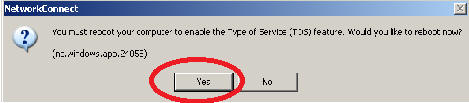
If you have not been prompted to restart your computer, please do so now. After a restart, the Juniper VPN Client should be installed on your computer.